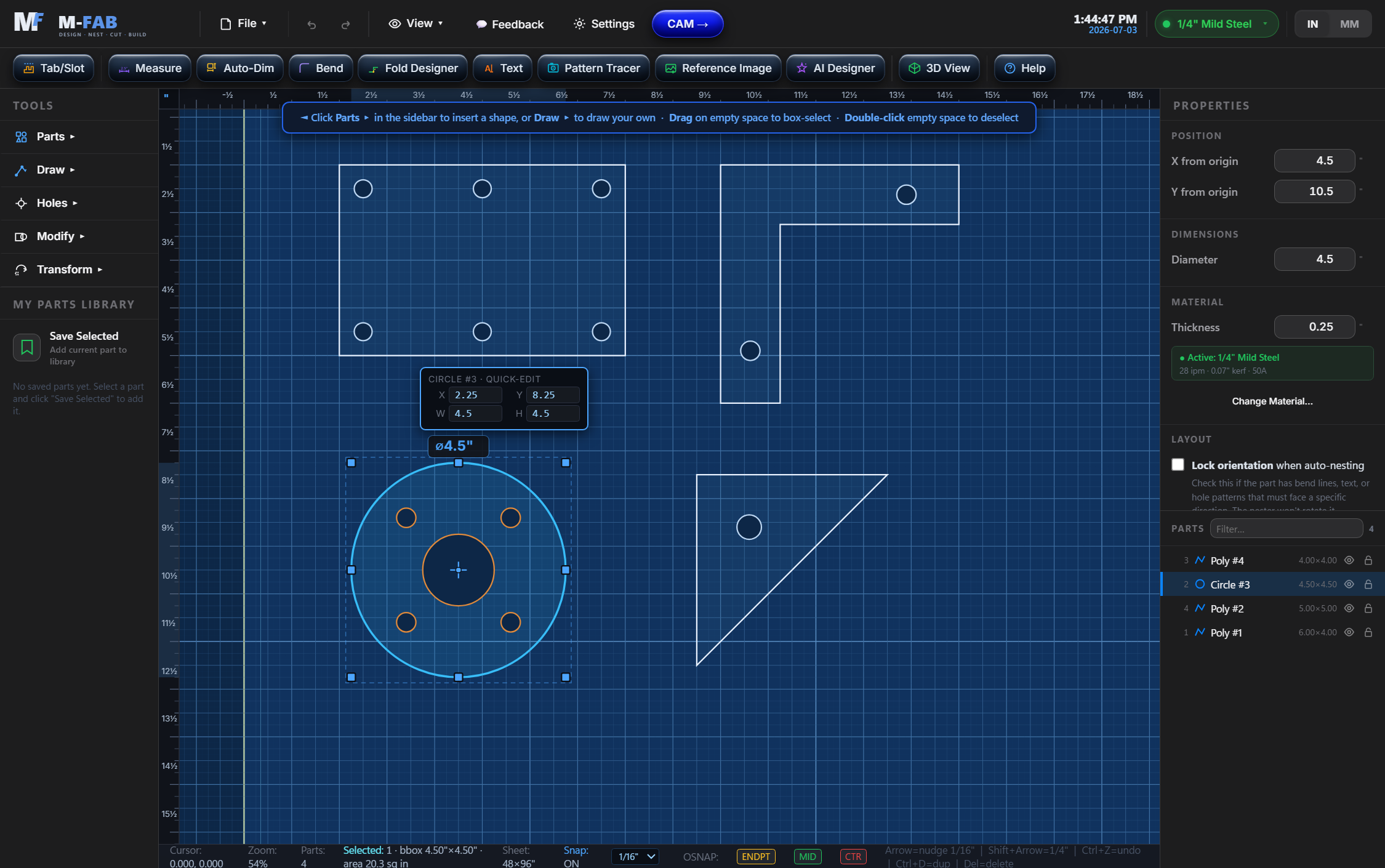
Add a part from the library, then click it on the canvas to edit dimensions and holes.
Pick a standard bolt size or enter a custom diameter, click OK, then click anywhere on the part.
A "stadium" hole — rectangle with rounded ends. After clicking Apply you'll click on the part to place it.
Slot length is the OVERALL length (centre-to-centre of the round ends + the diameter). Width = diameter of the round ends.
Centered on the selected part. Adjust offsets to shift the pattern.
Tell M-FAB about your machine once so cuts, costs, and the readiness checks match your shop. You can change any of this later in Settings.
How engraved labels are marked on the part. Marks always run before the cuts.
Small plasma holes cut rough at full feed. When on, M-FAB auto-applies clean-cut behavior to every round hole below the size threshold — no per-hole fiddling.
Pick a sheet size, see how much of it you're using, and reuse your offcuts. Remnants are saved on this computer.
Auto-mark every part with a label that scribes / etches before the cuts. Tick what to include — each line stacks on the part centre.
Saved with every project. Controls G-code output and canvas size.
How the canvas grid behaves. Auto adjusts the line density with zoom; Manual locks in a fixed spacing.
Tip: The grid snap (1/16") is independent of these display settings — change it in the status bar.
Adjust the text size of each UI region independently. Changes apply live as you click + / − and persist next time you open the app.
Tip: Defaults are 12 / 12 / 12 / 11 px. The Reset button restores those.
Rotation is around the bounding-box center of all selected parts. When multiple parts are selected, they orbit the group center together (like a CAD app). Each shape converts to a custom outline.
Multiplies all dimensions. 1.0 = same size, 0.5 = half, 2.0 = double.
Create evenly-spaced copies in a grid or around a circle.
Snap the selected part to a location on the sheet.
Generate a CNC12-ready .nc file for your active material.
Convert text into plasma-cuttable letters. Stencil fonts are recommended — they have built-in bridges so the insides of letters like O, A, D won't drop out.
Two slot lines captured — about to cut both plates.
Each plate gets a slot the width of the OTHER plate's thickness. The two plates can then slide together at the slot line so they interlock at a right angle — perfect for X-supports, dividers, and stands.
Slot will be cut where you drew the line.
Tip: "End Tabs" leaves a small tab at each end of the mating part's edge. "Multi-Tab" alternates tabs and gaps along the length — great for stronger T-joints. Slot width should equal the thickness of the part going through.
Snap a phone photo of your cardboard pattern on a known grid (cutting mat, graph paper, etc.). The app will convert it to a cuttable shape.
Describe the part you want, drop reference photos, optionally use your current canvas as a starting point. AI returns SVG path data, which drops onto your sheet as an editable shape.
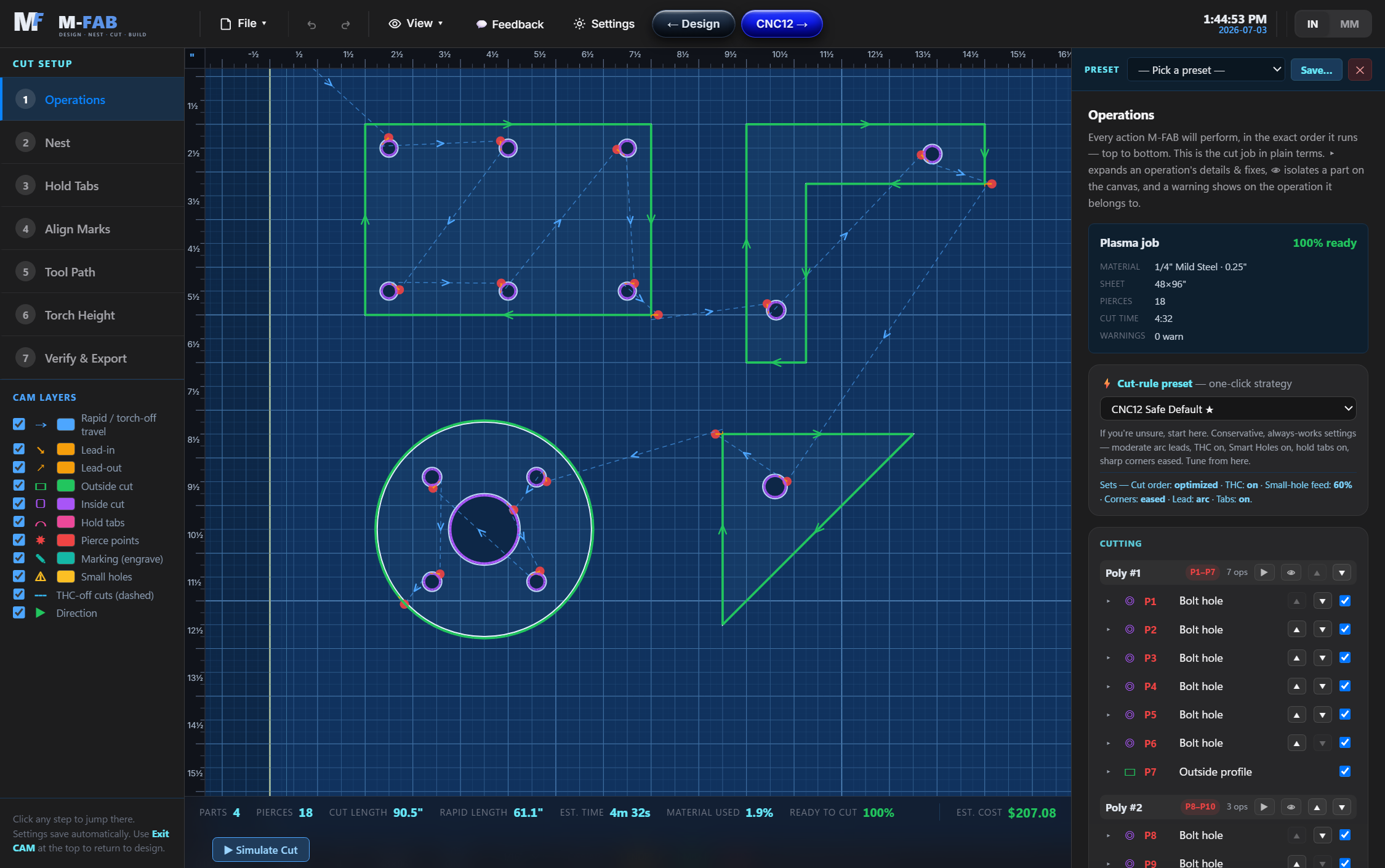
Rearranges your parts on the sheet to minimize material waste. The algorithm tries different rotations and finds the tightest packing. Original part positions are saved so you can undo.
Tip: Parts with bend lines, text engraving, or hole patterns that must face a specific way: select the part, then in the Properties panel check Lock orientation so the nester won't rotate it.
Tiny bridges that keep each cut part attached to the parent sheet so it doesn't fall through the slats while cutting. The torch lifts briefly at each tab. Snip them off later with a grinder.
Tip: Auto-placed tabs go on the bottom half of each part so the part doesn't tip after the cut completes. You can also click anywhere on a cut path (with the Tool Path preview open) to add a custom tab, or right-click an existing tab to remove it. (Click-to-place ships in Phase 16C.)
Small + crosses scribed at user-picked positions before the main cuts. Drop them at the corners of where your tubing or plate should sit. Run the program; if the marks land on the stock as expected, your alignment is good. If not, hit pause, nudge the stock, and resume.
Tip: Place 2-4 marks at the corners of where your stock should sit. After the marks are scribed the program pauses (if enabled) so you can compare the marks to your tube edges. If misaligned, adjust the stock and continue — the real cuts run AFTER you press cycle-start.
Textbook K-factors get close; your brake, die, and steel decide the truth. Cut a strip, bend it at the nick marks, measure, and every future bend uses YOUR number.
Generates bend_calibration.nc — a strip with a tiny nick on each edge at the centerline. Cut it, then bend 90° exactly at the nicks.
Bend the strip to 90° at the nick line. With a square against the OUTSIDE faces, measure both legs — outside corner to each end. Flat length was 4".
Design the FINISHED bent part: legs + bend angles, like bending a piece of wire. Watch it fold in 3D, then generate the exact flat pattern with bend lines — deductions included.
The kerf is the actual width of metal removed by your plasma cut. It varies by amperage, feed rate, torch height, and consumable wear. Calibrating tunes the program to YOUR machine so cut parts come out to exact dimensions.
Drills a matched hole on each of the two flanges of a bent part so a bolt can pass through both sides after bending. The part must have at least two parallel bends (a U-shape, for example).
Tip: Distance from base is how high above the workbench the bolt will sit after the part is bent. The tool finds the part's two parallel bend lines and drops matched holes on each flange so they line up.
Rounds every sharp corner of the selected part (Fillet) or cuts a straight bevel across each (Chamfer). Use this to remove stress concentrations and snag hazards. The maximum size is automatically clamped so corners don't overlap.
Makes a new version of the outline, grown or shrunk by the given distance. A negative value also works (flips direction).
Save your machine settings, material library, calibration history, CAM presets, and UI preferences to a single .ppb-settings.json file you can stash in OneDrive, copy to another computer, or share with a friend who has the same plasma cutter.
Pick how you want the output laid out. 1:1 paper templates are sized so one inch on the design = one inch on paper — tape pages over your material to verify fit before cutting. Fit-to-page shop drawing packs the layout onto one page with a title block, ready to share or hand to a crew.
Loads a picture as a background layer that sits behind your parts. Use the Polyline or Arc tools on the left panel to trace over it. The image is not cut — it's only a reference. Coming next: PDF support, on-canvas drag-to-position handles, rotation, and click-two-points calibration.
Accepts PNG, JPG, GIF, BMP, WebP, and PDF (page 1 is used). After loading, you'll be able to set its real-world size and opacity.
You clicked two points on the image. They're currently apart on the canvas. What's the real-world distance between them?